
Your plant's documents,
finally in one place.
Nuclearn Connect brings procedures, vendor manuals, drawings and licensing documents in from SharePoint, file shares and your document systems. Scanned pages are read with OCR, so old documents are searchable too. And every AtomAssist answer traces back to the page, the passage and the revision it came from.
- Works from the systems you already have
- Connect only connects out
- People see only what they may read
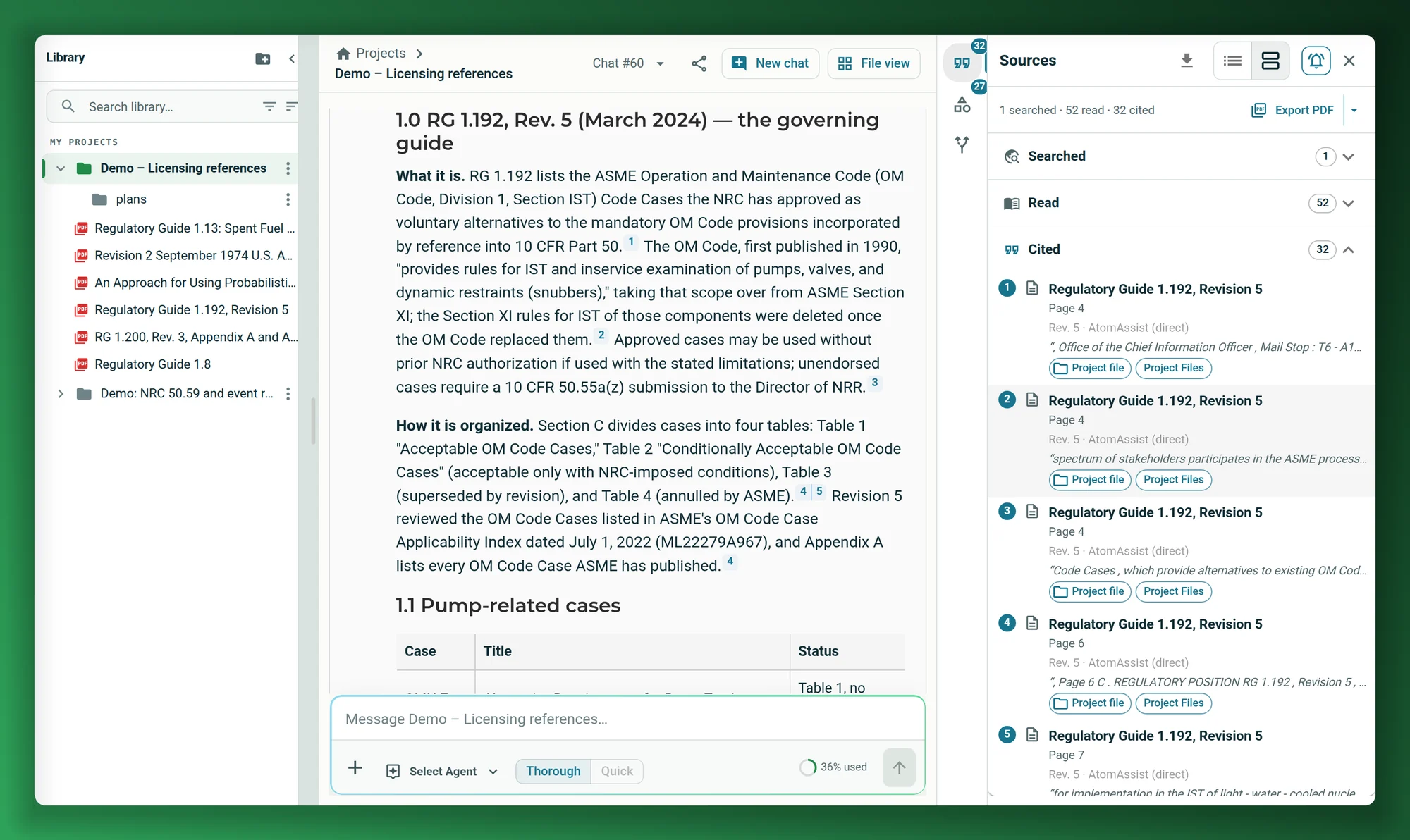
Screenshots on this page show publicly available NRC documents, as they appear in the Nuclearn platform today.
- Backed by NuclearnAI software built for nuclear plants since 2021
- Over 70 facilitiesNuclearn products serve sites in North America and the U.K.
- ISO/IEC 27001:2022Certified information security management
One library for the jobs that start with finding a document.
Work planning, engineering questions, licensing research and turnover all begin the same way: find the right document, and make sure it's the current one. The library does that across your document systems.
Gather what a work package needs
Find past work packages, vendor manuals, procedures and engineering changes in one search, then collect them in a project folder for the job.
See search → EveryoneSearch the scans, too
Typed guides, old work packages and vendor manuals that exist only as scans are read with OCR, then found by search and cited in answers like any other page.
See OCR → Engineering and licensingTrace an answer to its source
Every AtomAssist answer cites its sources. Follow a citation to the page, the highlighted passage and the document's revision, and export the trail as a report.
See traceability → EveryoneKnow which revision you're reading
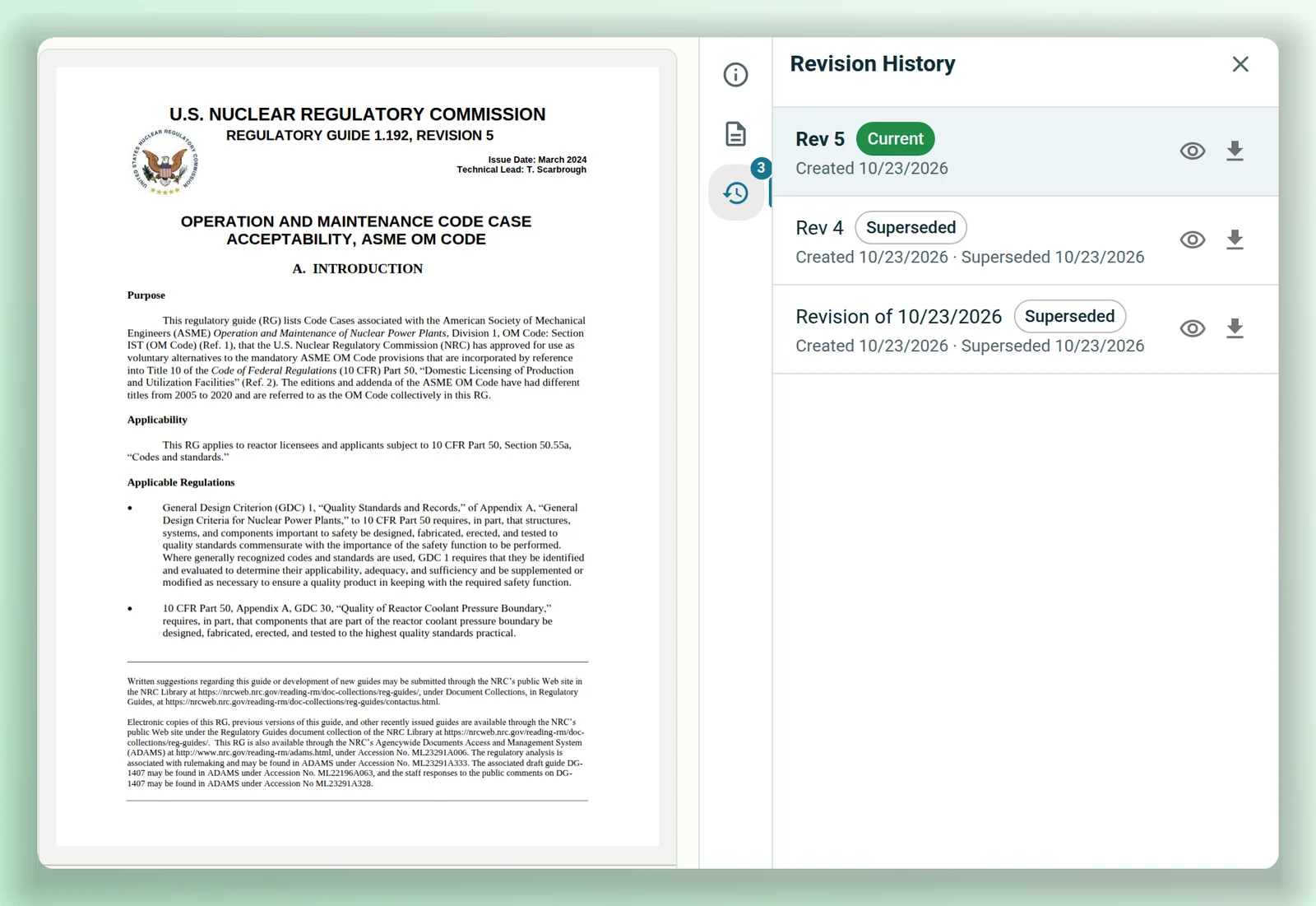
Each document keeps its revision history. Open an older revision and a banner names the current one; project folders flag documents with a newer revision.
See revisions → Document control and ITKeep the library in step with your systems
Nuclearn Connect syncs SharePoint, file shares, CMIS repositories, Maximo attachments and Aras Innovator. Changes and deletions follow the source.
See Nuclearn Connect → IT and securitySearch only what each person may read
Search, listings and AtomAssist answers reach only the collections and project folders a person may read. If they can read nothing, search returns nothing.
See access control →The documents exist. Finding the right one takes the time.
A plant's documents live in several places: a document management system, SharePoint sites, file shares, Maximo attachments, a PLM system. Planners and engineers search each one, then check by hand that the copy they found is the current revision.
INL's work-management study describes the same thing: technical documentation "may be in various repositories and formats at the power plant", and "current revisions of the procedures must be included" in every work package.1
The Document Library starts from the systems you already have.
INL's estimate of what four work-package planning steps cost today. Each starts with a document search: similar past work packages, the technical information for the equipment, engineering changes and technical specifications, and the current revisions of procedures. Online work only, at $200/hr.
INL's estimate of the time a planner spends searching for engineering changes and technical specification changes that affect the equipment, then comparing them with the package.
INL's figures are its estimates of what these steps cost now, not savings from Nuclearn. Its step times are expert estimates and vary by plant. Outage work is not included. Sources at the foot of the page.
From your document systems to a cited answer
No migration and no new system of record. Your documents stay where they are; the library keeps a searchable copy in step with them.
Connect your sources
Run Nuclearn Connect next to SharePoint, a file share or your document system and pick what to sync. Or upload files into a project folder.
The library reads them
Each document is read, with OCR for scanned pages, and indexed for search. Changes in the source come through as they happen or on a schedule you set.
Search, ask, cite
Search the library, open any document in the browser, or ask AtomAssist. Answers cite the documents they used.
One search across the plant's documents.
Search everything you can read, one collection or one project. Each result shows the matching passage, where the document lives, its kind and its revision, and opens the document at that passage.
- Finds passages by meaning as well as by exact words.
- Superseded revisions stay out of results unless a project pins one.
- Search inside an open document, too.
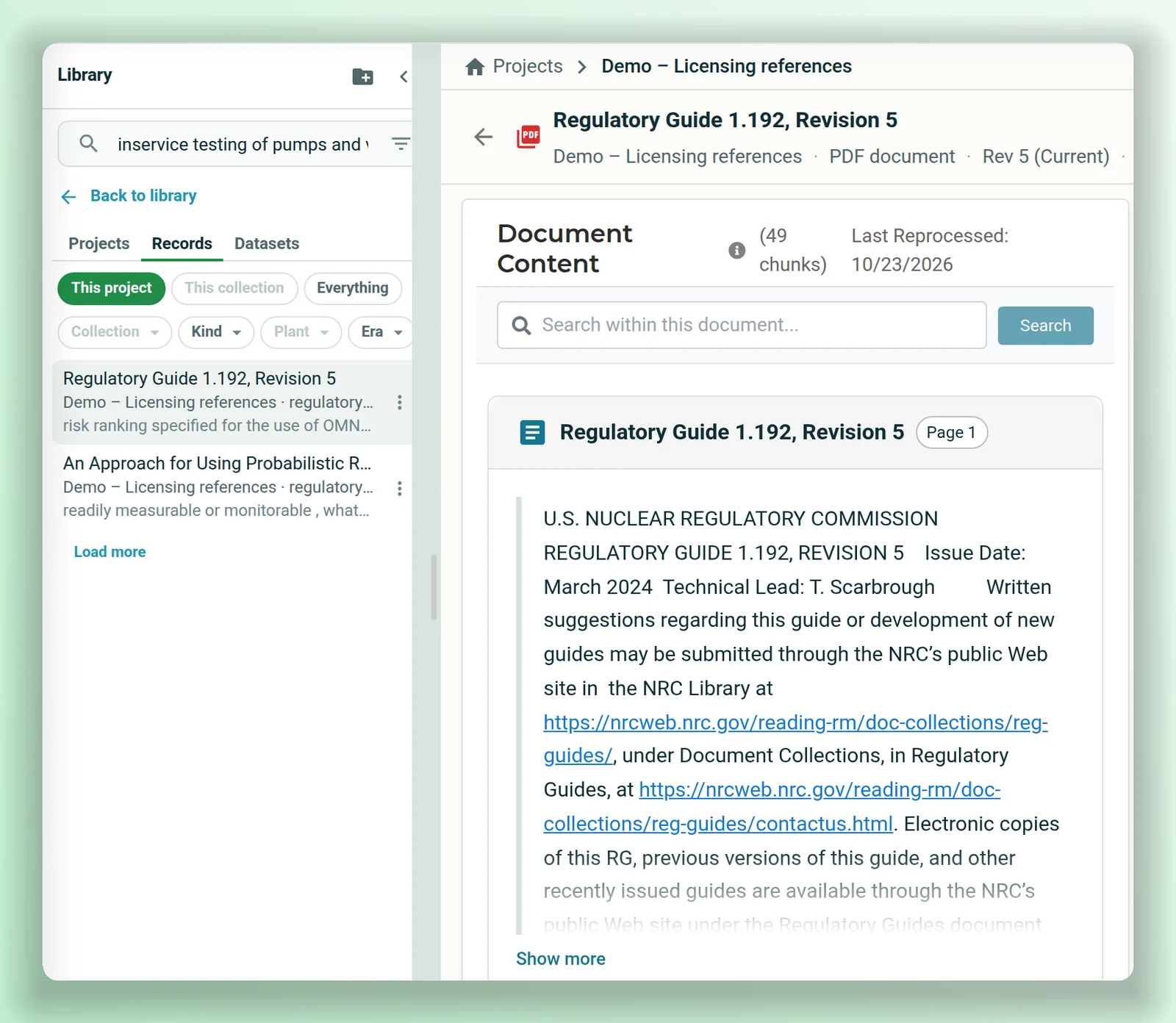
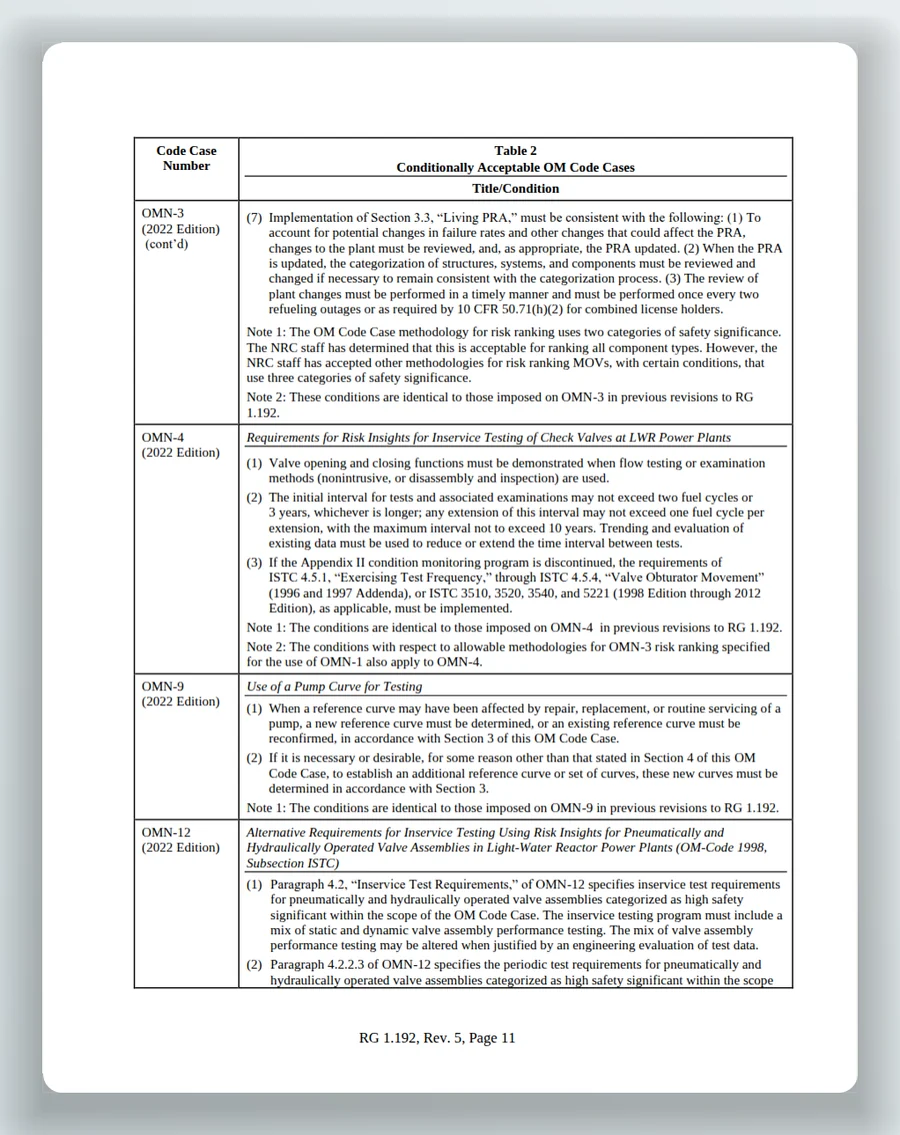
Scanned pages become text you can search and cite.
Much of a plant's history exists only as scans: typed guides, old work packages, vendor manuals. As each PDF comes in, the library finds the pages with no usable text and reads them with OCR. From then on, those pages turn up in search and in AtomAssist answers like any other page, and a citation opens the scan itself.
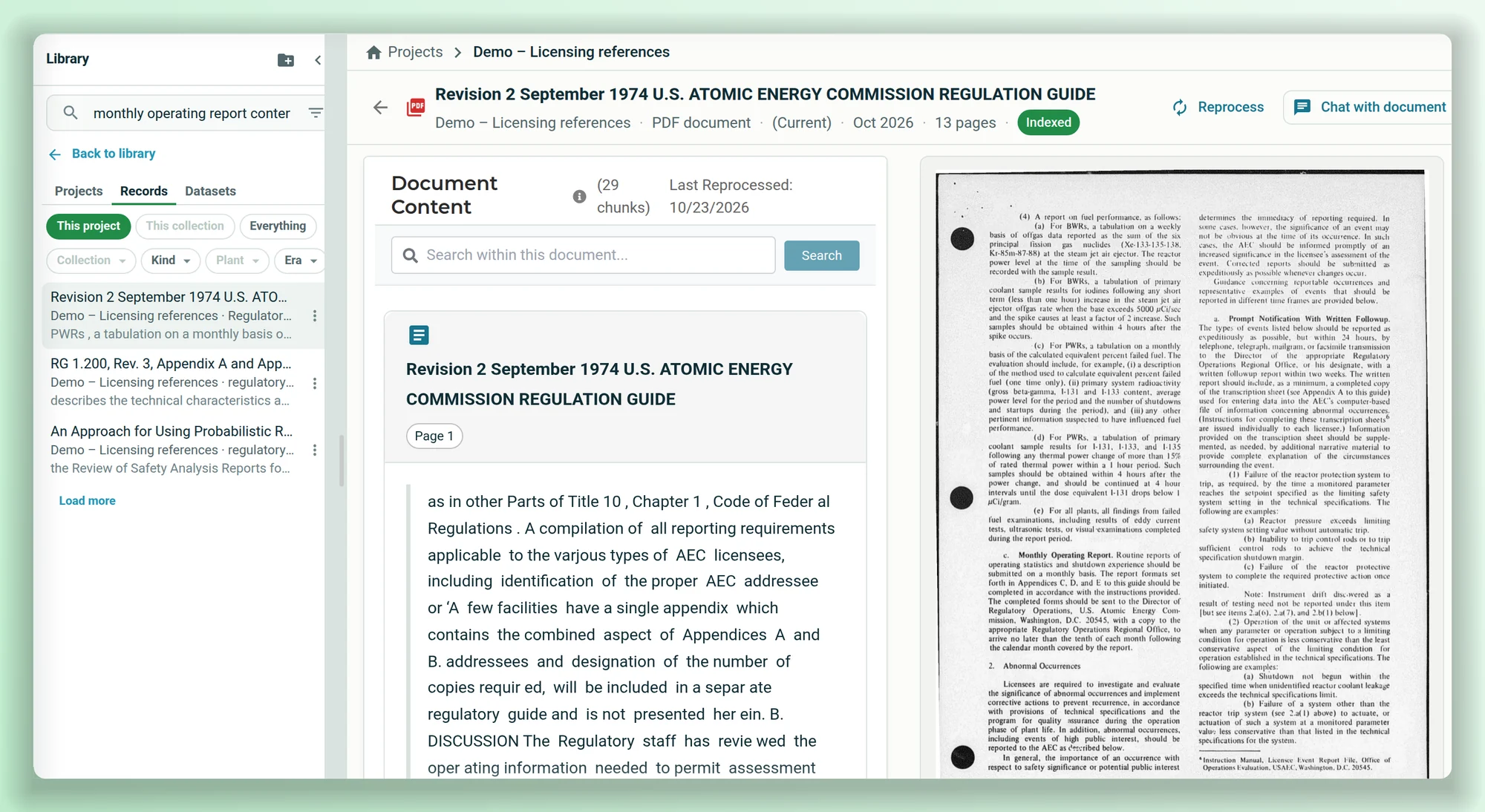
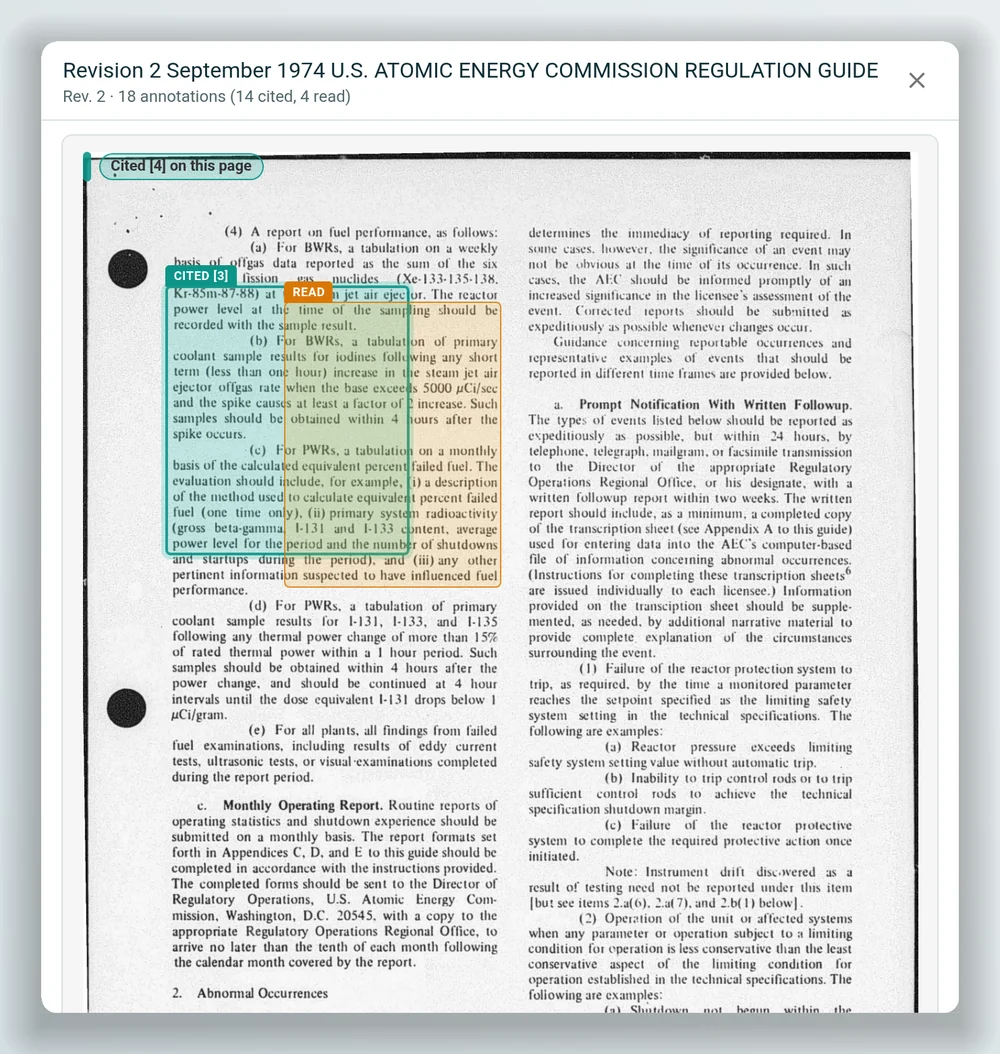
Found page by page, with the status in view.
Every PDF is checked when it arrives. Pages without a text layer are read with OCR, and so are PDFs whose text layer is there but unreadable. Text read from a scan is indexed with everything else.
- Catches scanned pages inside an otherwise digital PDF.
- Citations and highlights land on the scanned page itself.
- Each document shows its stage while it's read, run through OCR and indexed, and can be reprocessed from its page.
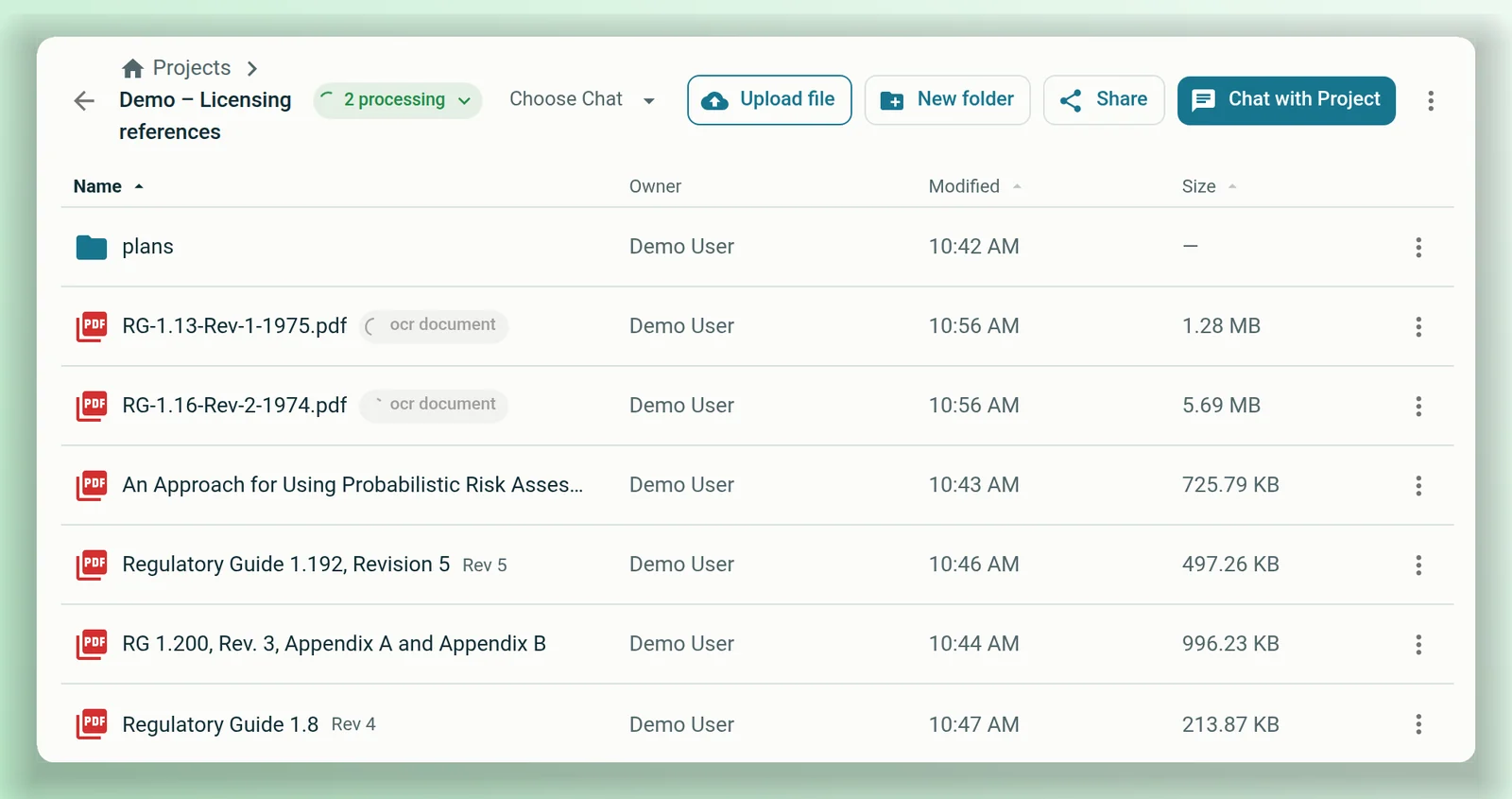
Traceability from every answer back to its source.
An answer is only useful if someone can check it. Each link from an AtomAssist answer back to the document is a click away, and the whole trail can be exported.
- The answerEach statement carries a numbered citation.
- The citationNames the document, the page and the revision, and quotes the passage.
- The pageThe source opens at that page, with the cited passage highlighted.
- The revisionCurrent or superseded, with the document's revision history.
- The sourceA synced document's collection is fed by one source folder, and Connect shows when it last synced.
Every link follows access. Search, answers and citations draw only on documents the person may read.
Answers you can check in one click.
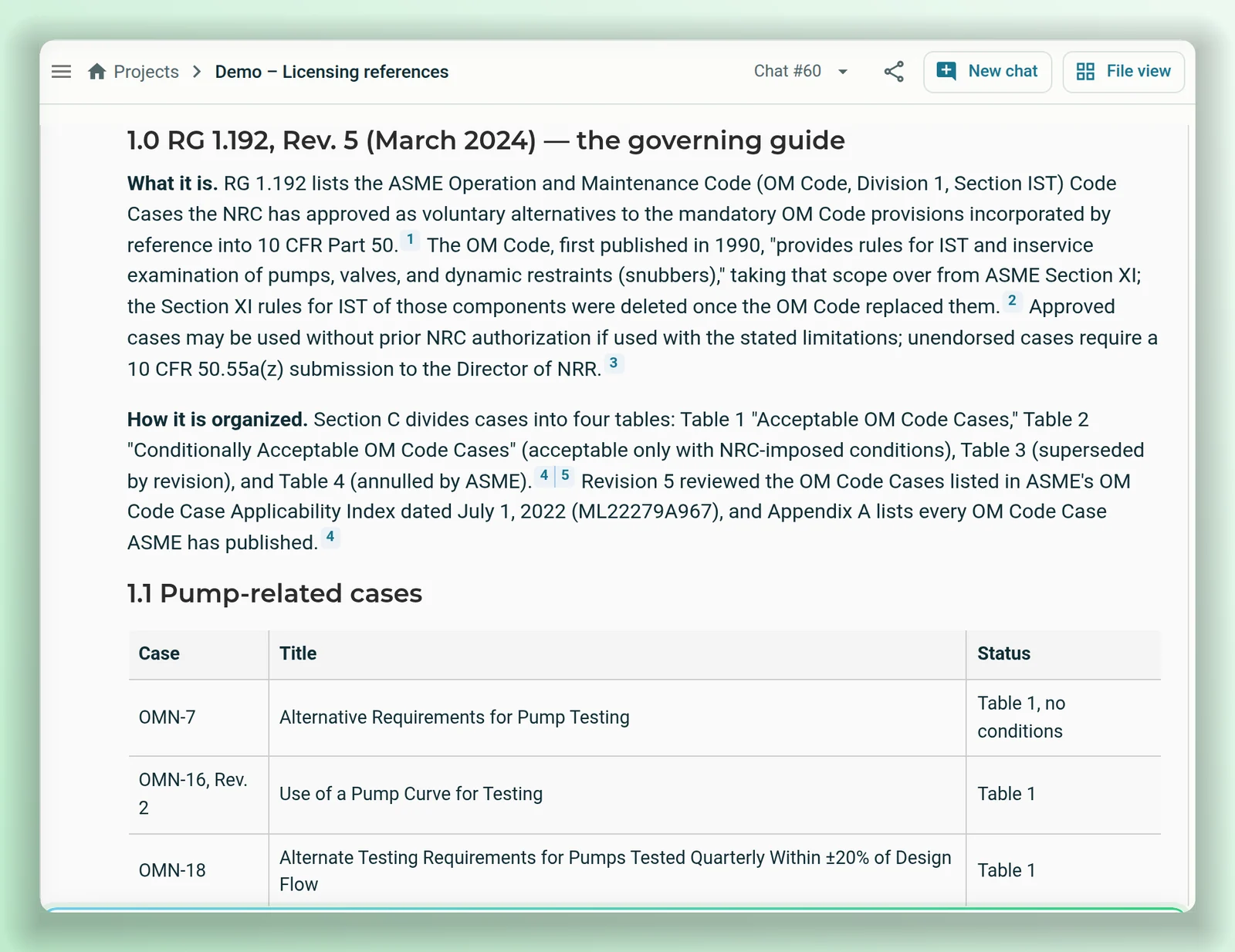
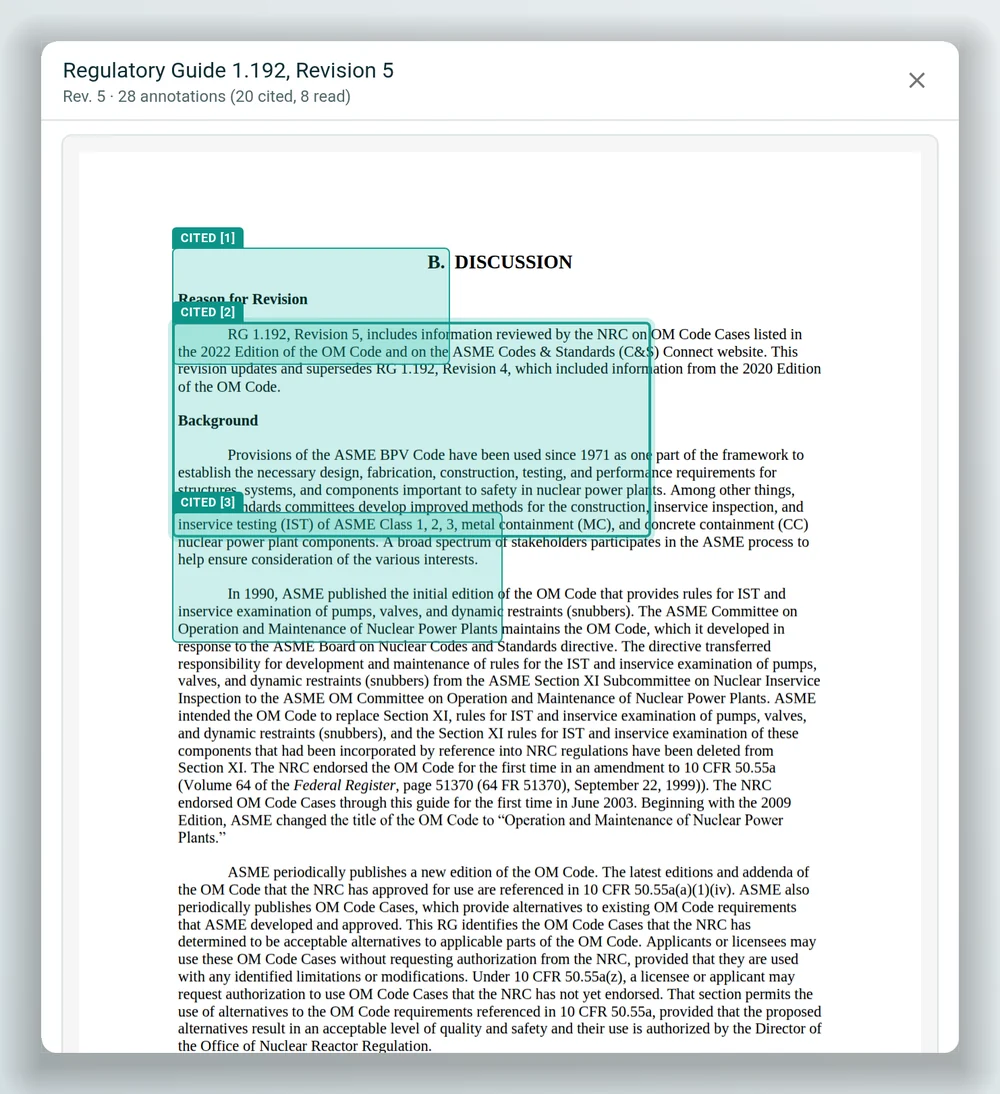
Start a chat from a document or a project folder and ask AtomAssist. Each answer lists what it cited, what it read and what it searched. Click a citation and the source opens beside the chat at the cited page, with the passage highlighted.
- Chat with one document, or with a whole project folder.
- Cited and read passages numbered and highlighted on the page.
- Export the trail as a PDF source report, for one answer or the whole conversation: the question, who asked and when, the model, and each cited document's revision, page and passage. A JSON audit trail is there too.
See the history, and know when there's a newer one.
Upload a new version of a document and it becomes the current revision once it's read, with the earlier revisions kept in its history. Open an older revision and a banner says which revision replaced it and when. Project folders that use the document flag the newer revision and bring it in with a click.
- Revision history: label, current or superseded, dates, and each revision's file.
- Citations name the revision they came from.
- Who brought a newer revision into a project, and when, is recorded.
Your document systems, synced from inside your network.
Nuclearn Connect runs next to your sources, behind your firewall. It reads the sources you choose and sends new and changed documents to your Nuclearn platform over outbound HTTPS. The platform never opens a connection into your network.
When a document changes, the library follows.
Connect keeps checking what you chose to sync and sends only what changed. For file shares, SharePoint and CMIS you pick folders from a live view of the source; Maximo and Aras sync as a whole. The admin page shows each folder's status and when Connect last checked in.
Made for decades of documents, not one tidy system
Metadata read for you
Title, author, document type, date and version are read from each document by AI, shown next to the record's own facts and marked as AI-generated.
Upload too
Drag files into a project folder: PDF, Word, Excel, PowerPoint, text and more.
Notes on the page
People who can edit a document highlight passages and add notes on its page.
Folders for each job
Gather documents for an outage, a modification or a licensing action in a shared project folder.
Synced stays synced
Synced collections can't be edited by hand, so the library matches the source.
Shared the way your teams work
Share a project with people or groups to view, edit or manage. Keep a collection private, share it with a team, or open it to your whole organization. Adding a document to a project doesn't change who can read it.
Connected from inside. Read only by the right people.
Connect needs no inbound access to your network, and the library shows each person only what they're allowed to read.
Outbound only
Connect runs inside your network and makes every connection itself, over HTTPS. It opens no listening ports, and the platform never connects in.
A key for each Connect
Each Connect gets its own key, shown once; the platform keeps only a hash. Rotate or revoke it from the admin page. TLS certificates are checked, and Connect can trust your own certificate authority.
Read-only on your sources
Connect only reads from your document systems. It doesn't write, move or delete anything there.
Private until shared
A collection created by a sync starts private to the person who set it up. Access is then given per collection, to people or groups.
Search follows access
Search, listings and AtomAssist answers reach only what the person may read. Admins manage access but don't automatically read private collections.
A certified company
Nuclearn is ISO/IEC 27001:2022 certified. Sign-in goes through the Nuclearn platform and its single sign-on.
Revisions found for you, and what changed between them.
In development now, and not yet in a release.
Revisions linked automatically
Read the document number and revision from each file, link new revisions to the document they replace, and queue uncertain matches for a person to confirm.
What changed
A section-by-section summary of what was added, removed and changed between two revisions, next to the passages themselves.
Revisions and details from your sources
Released versions from a PLM or document system kept as revisions, with the source's item number, revision and lifecycle state shown on each record.
Documentum and FileNet
Dedicated Connect adapters for OpenText Documentum and IBM FileNet, with released-version filtering.
What it is not
The Document Library is not a document control system or a records vault, and Connect doesn't write to your sources. Your document systems stay the system of record; the library is the searchable copy people read and ask questions of.
Questions plants ask first
Do we have to move our documents?
No. Your documents stay in SharePoint, your file shares and your document systems. Connect keeps a copy in the library in step with them, and synced collections can't be edited by hand, so the source stays the source.
Which systems can Connect sync today?
SharePoint (through Microsoft Graph), file shares (local disk, NFS or SMB), CMIS 1.0 and 1.1 repositories such as Alfresco, documents attached in Maximo, and Aras Innovator. Dedicated Documentum and FileNet adapters are in development. Anything else can be uploaded.
Does Connect need a firewall opening?
No inbound opening. Connect runs inside your network and makes outbound HTTPS calls to your Nuclearn platform. It opens no listening ports; even browsing your folders from the platform works by Connect asking for the request.
Are our source permissions copied?
Not document by document. Access is set per collection in Nuclearn: a synced collection starts private, and you share it with the people and groups who should read it. Search and AtomAssist then follow those permissions.
What happens when a document is deleted or moved in the source?
Deletions are applied to the library. A brake holds back unusually large batches of deletions, or deletions after an incomplete check of the source, until an admin confirms them. A moved document is removed from its old place and added at the new one.
Do synced documents keep their earlier revisions?
Not yet. Connect keeps the library's copy current, so a changed file replaces the earlier copy. Revision history today comes from uploading a new version in the library. Keeping released versions from your source systems as revisions is in development.
Which scanned documents can it read?
PDFs with scanned or image-only pages, including the odd scanned page inside an otherwise digital PDF, and PDFs whose text layer is there but unreadable. The library checks each PDF when it arrives and runs OCR where it's needed. A collection can also have the pictures and figures in its PDFs described in words for search; an administrator turns that on per collection.
Can AtomAssist's answers be checked, and is there a record?
Yes. Each answer lists the sources it cited and the ones it read, and a citation opens the source at the cited page with the passage highlighted. Check the passage before you rely on the answer. For a record, export a PDF source report or a JSON audit trail for one answer or the whole conversation, or save the report into a project folder.
Is the Document Library part of AtomAssist?
Yes. The Library sits in AtomAssist Projects, next to the chat. Nuclearn Connect is added to a deployment and set up by an administrator.
See a question answered from your document systems.
We'll show Connect syncing a document source, the library and its search, and AtomAssist answering with citations that open the page, on public NRC documents. We'll also answer your IT team's questions about Connect, sign-in and access.
- A live walkthrough on publicly available NRC documents
- Which of your document systems Connect can sync
- Your questions on deployment, sign-in and access
The Nuclearn Document Library is backed by Nuclearn, whose products serve over 70 facilities in North America and the U.K.
Book a demo
Tell us a little about your site and we'll set up a time.
Thanks, we've got it.
We'll be in touch to set up a time. If it's urgent, email contact@nuclearn.ai.
Prefer email? contact@nuclearn.ai